
Backup & Restore
Magic Box keeps everything you’ve configured — profiles, bindings, channels, settings — in one file. You can save that file, and put it back any time. Nothing technical to learn.
Make a backup
Section titled “Make a backup”- Open the Magic Box web UI from your phone or laptop.
- Go to System.
- Tap Download backup.
- A file lands on your phone or laptop. Save it somewhere you won’t lose it — cloud drive, email to yourself, USB stick.
That’s it.
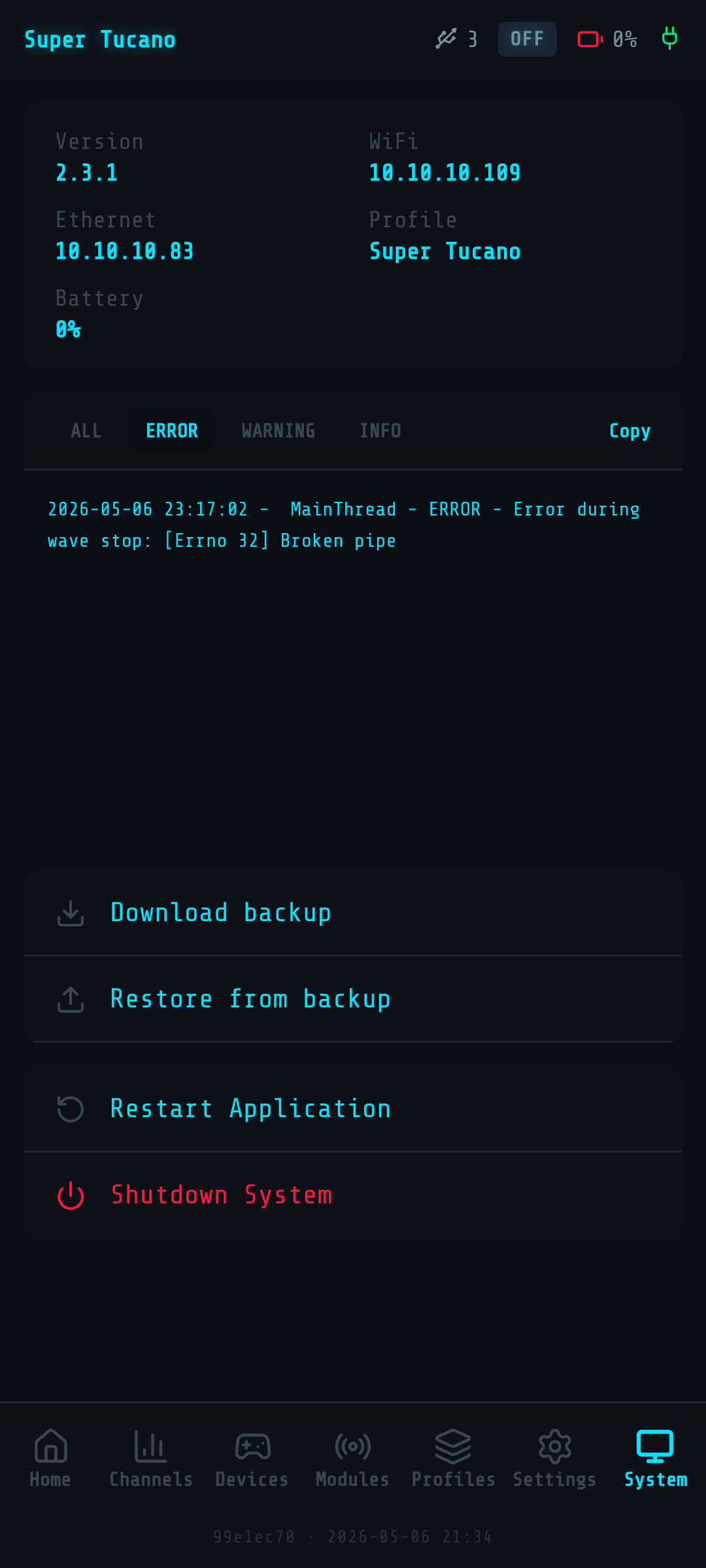
Restore a backup
Section titled “Restore a backup”- Open the Magic Box web UI.
- Go to System.
- Tap Restore from backup.
- Pick the backup file from wherever you saved it.
- Confirm. Magic Box restarts itself in a few seconds, and you’re back where you were.
Your config from the backup overwrites whatever’s currently on the Magic Box. If that’s not what you want — Magic Box quietly keeps a snapshot of your current setup before applying, so you can roll back.
When to back up
Section titled “When to back up”- Before every firmware flash. Flashing wipes the SD card. Without a backup, you start from scratch.
- After big config changes you want to keep. Built a perfect setup for your new airframe? Back it up.
- Before experimenting. Trying weird mixes you might want to roll back from.
Lost your backup file?
Section titled “Lost your backup file?”If the Magic Box itself still boots, your latest config is on it. Make a fresh backup straight away.
If the Magic Box doesn’t boot — pull the SD card, send it to us, and we’ll see what’s recoverable. Reach out via the SilverFox RC Facebook group.
Coming from firmware v1.x?
Section titled “Coming from firmware v1.x?”v1 didn’t have a built-in backup. Your config lives as files on the SD card — see Migrating from v1 to v2 for how to bring those across.